 NextSupport
What it does
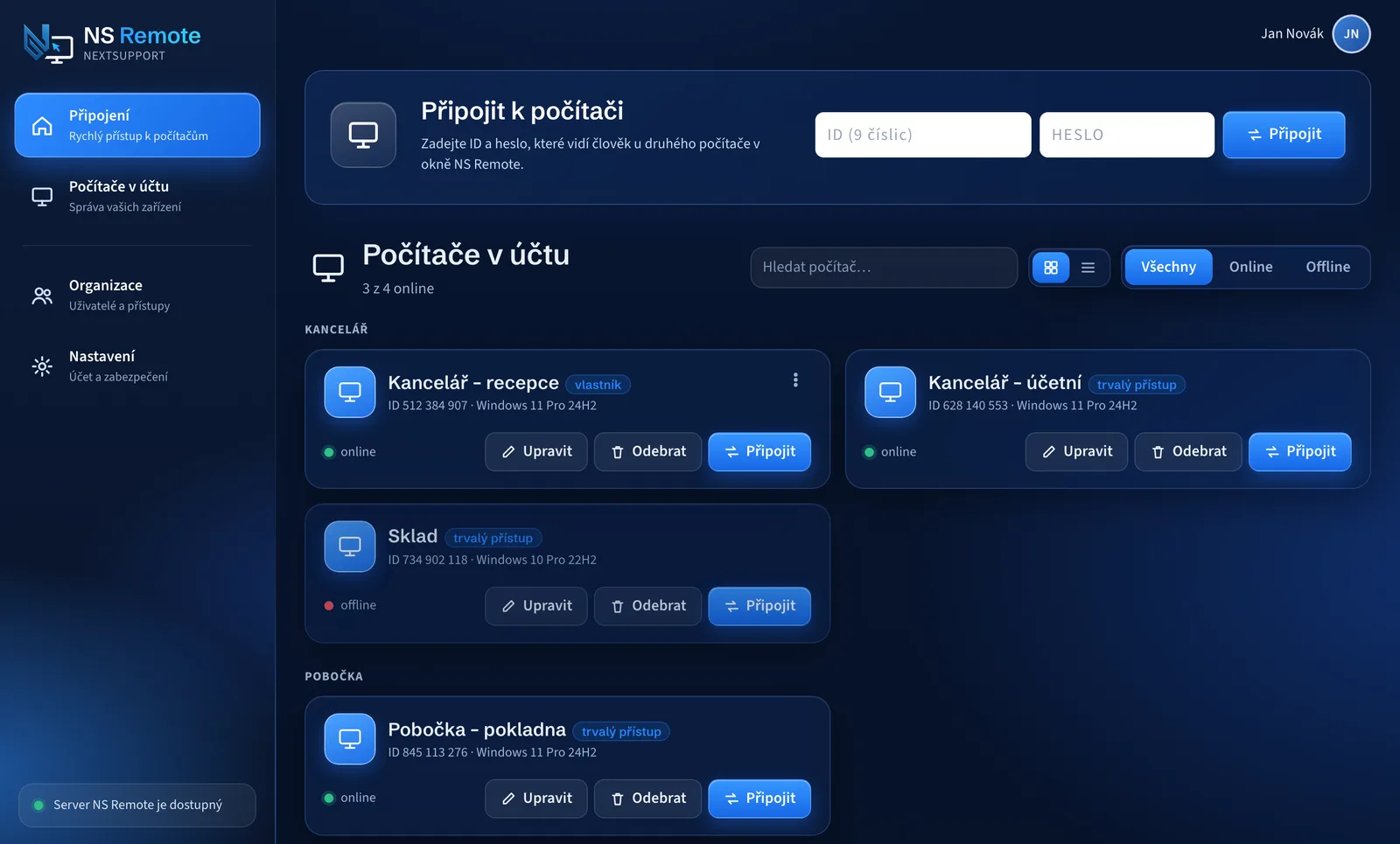
- Connect with an ID and password; the password changes after every connection
- Smooth picture and sound, with a “speed / quality” choice for slower connections
- Mouse, keyboard, shared clipboard, chat
- Files in both directions, including whole folders. After a dropped connection, the transfer continues where it stopped. Files saved to disk are checked with a checksum, so a damaged file is detected
- Control even on the locked and sign-in screen, Ctrl+Alt+Del and restart with automatic reconnect (in the installed app with permanent access)
- Several connections in tabs of one window, computers in groups
- Organisations for companies: administrator, technician and view-only, access by group
How to connect
- 1The other person downloads NS Remote Fast and runs it (nothing gets installed).
- 2They tell you the ID and password from the NS Remote Fast window (in the installed app, from the “This computer” tab).
- 3You enter them in the app in the “Quick connect” field and the remote desktop opens.
NS Remote for Android
The app for Android 8.0 and newer does both: from the phone you connect as a technician to a Windows computer, or a technician helps you directly on the phone. It is downloaded as an APK file directly from our website; it is not on Google Play yet. To allow the phone to be controlled remotely, you need to turn on the accessibility service once after installation.
- 1Download the file with the button above and open it (from the download notification or in the Downloads folder).
- 2Android asks whether the browser may install apps. Choose Settings, turn on Allow from this source and go back to the installation.
- 3To control the phone remotely, open Settings → Accessibility, find NS Remote – ovládání na dálku (remote control) and turn it on.
Detailed Android guide (in Czech): installation, phone support and the phone as a technician →
SHA-256 fingerprint of the file NSRemote-Android-1.0.0.apk:
d57c359ac0fc995ec242b8028197de0870f490381ba1290b4887276038a400ea
Security: exactly what you install
Being wary of downloading a remote control program from just anyone is reasonable. Here is exactly what NS Remote does and does not do.
What gets installed
Only the NS Remote program: into your user folder, plus a copy in Program Files so that help is possible on the sign-in screen and after a restart. It starts with Windows. No add-ons, no ads. You can uninstall it at any time in Settings → Apps.
Nobody connects without your permission
A one-time connection is possible only with the password that only you see on your computer, and it changes after every connection. Permanent access (without a password) is given only to someone you allow directly on the computer, or someone the computer’s owner shares it with. The “This computer” tab shows who has it, and you can remove it at any time.
You know someone is connected
When you are at the computer, you see a bar “Computer controlled by…” at the top the whole time, with End and Report misuse buttons. On a locked computer nobody gets to your files: they can be opened only after unlocking, always only with the rights of the signed-in user, and a running transfer stops when the computer is locked.
End-to-end encryption
Picture, sound, keystrokes and files are encrypted directly between the two computers. The server forwards them encrypted and cannot read them. Since version 0.7.23, each computer also verifies by itself who is connecting to it, so even someone who took over our server could not get in. The exception is permanent access from before the update: it gets this protection only after it is confirmed, and unconfirmed access stops working within 30 days.
A fake computer is detected
The app remembers the security key of every computer you have already connected to. If the key changes (for example after Windows is reinstalled), it is not silently overwritten: the connection stops, and you can continue only after you confirm the change yourself.
Recognise the genuine file by its signature
The app is digitally signed by NextSupport s.r.o. with a certificate issued by Microsoft after verifying our company. Right-click the downloaded file and choose Properties → Digital Signatures. The signer must be “NextSupport s.r.o.”. If it is not, do not run the file: it does not come from us.
We check every change for security
Before a new version is released, every change goes through a security review against a fixed list of threats, and a version cannot be released without it. Updates are downloaded only from us, and their signature is verified before installation.
Don’t want to install?
Download NS Remote Fast. It is a small standalone program: nothing gets installed, it is not added to the Start menu or to startup, and it does not need administrator permission. It shows only the ID and password. You have to allow every connection on the computer yourself, and no permanent access can be created with it. When you quit the program, it cleans up after itself and nobody can connect to you.
Verify the downloaded file
The file fingerprint (SHA-256) must match exactly. You can also have the file checked by dozens of antivirus engines on VirusTotal. The installer and NS Remote Fast are two different files, each with its own fingerprint.
Installer (Download and install)
4fe913d3ec3cde0861f854a135e16eb14dc33ef6fc90ccfb244c4cf26a781d7d
File NSRemote-Setup-0.7.32.exe (version 0.7.32). In Windows you get the fingerprint with the command certutil -hashfile NSRemote-Setup-0.7.32.exe SHA256. Result on VirusTotal
NS Remote Fast (Run without installing)
626de3ebc84bb711f1f3c0711fe8168ae533a905f531ac3d3dbc0258f9255b79
File NSRemote-Fast-0.7.32.exe (version 0.7.32). In Windows you get the fingerprint with the command certutil -hashfile NSRemote-Fast-0.7.32.exe SHA256. Result on VirusTotal
Why not TeamViewer, AnyDesk or RustDesk?
Almost everyone knows TeamViewer and AnyDesk, and that is why scammers misuse them most often: they call pretending to be a bank or “technical support”, dictate an ID and take over the computer. They are also free only for personal use.
RustDesk is open and can run on your own server, but setting up, securing and maintaining the server is then up to you.
We wrote NS Remote ourselves and built it against misuse from the start. A free account can connect only after its phone number is verified, so misuse can be traced. For companies, we know who an organisation belongs to and who has access in it. The computer’s password changes by itself, permanent access is granted by the person at the computer or by its owner, and the connection is encrypted between the two computers. We run the server ourselves, in the Czech Republic.
Watch out for scammers
Scammers often pretend to be a bank, the police or technical support. Never install NS Remote because an unknown caller tells you to, and give the password only to someone you know.
Pricing
Full pricing and FAQFree, also for business use
Free account: 20 minutes per connection, 60 minutes per day, 3 computers in the account, one connection at a time and a verified phone number.
Try for free- People
- 1
- Computers
- 3
- At once
- 1
- People
- 1
- Computers
- 10
- At once
- 1
- People
- 3
- Computers
- 200
- At once
- 2
- People
- 10
- Computers
- 1,000
- At once
- 5
- People
- 30
- Computers
- 5,000
- At once
- 15
Frequently asked questions
A detailed step-by-step procedure is in the NS Remote guide (in Czech).
- Is it free?
- Yes, also for business use. The free account has these limits: 20 minutes per connection, 60 minutes per day, 3 computers in the account and one connection at a time. Before you connect from a free account for the first time, we verify your phone number so that misuse can be traced. For now, phone verification accepts Czech mobile numbers (+420). Anyone who only lets others connect to them does not need an account. If you need more, there is the Pro plan from 99 CZK per month and business plans in the price list.
- What does Windows ask during installation?
- During installation Windows asks whether Windows PowerShell (verified publisher Microsoft) may make changes – that is the NS Remote installation setting up the service for the sign-in screen and restart. Click Yes.
- Can you see what is transmitted?
- No. Picture, sound and what you type are encrypted directly between the two computers, and we only forward encrypted data. We store none of it.
- What do you store about me?
- We do not store what is on the screen, what you type or which files you send. We store only what is needed to run the service and to trace misuse: the computer name and Windows version, a computer fingerprint (so it can be recognised even after reinstallation), when it was last online, and a record of who connected to which computer and when, from which internet address and how much data was transferred. For an account, also the e-mail, name, verified phone number and the names of the devices you sign in from. No ads and no tracking of content.
- How do I uninstall NS Remote?
- In Settings → Apps → NS Remote → Uninstall. The whole program is removed. The computer identity (ID and list of permanent accesses) stays in the folder C:\ProgramData\NSRemote, so that the computer has the same ID after a new installation. Without NS Remote nobody can connect through it. If you do not want it, delete that folder (Windows will ask for administrator permission).
- What about Mac or mobile?
- For phones with Android 8.0 and newer, the app can be downloaded as an APK file, see the NS Remote for Android section above. It does both: from the phone you connect to a Windows computer, and a technician can also help you on the phone. We do not have a version for Mac and iPhone yet.
Want NS Remote for your company?
We will help deploy it on all company computers, set up an organisation and configure access for your IT. Tell us what you need.
I’m interestedFound a security bug in NS Remote? Vulnerability reporting (in Czech)
Terms of service (in Czech) · Licence agreement (in Czech) · Privacy policy (in Czech)