 NextSupport
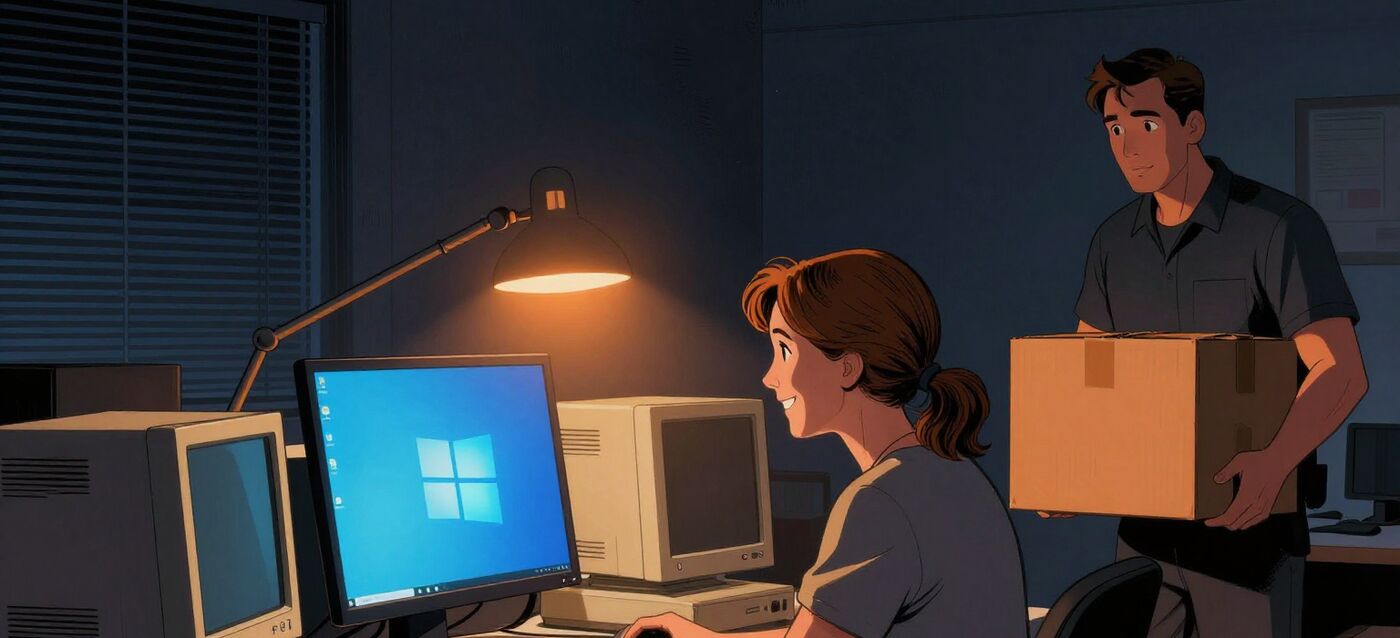
Regular support for Windows 10 ended on 14 October 2025. Computers have kept working since then; Microsoft simply does not send them security patches without a paid extension. For a year this could be put off. In October 2026, however, things moved again, and we are getting the same question from businesses, schools and medical practices: "What should we do about it now?"
What changed in October 2026
Microsoft offers what it calls Extended Security Updates (ESU). For businesses this is a paid programme for up to three years. Each year costs twice as much as the previous one (prices per computer):
- Year 1 (October 2025 to October 2026): USD 61. Already over.
- Year 2 (14 October 2026 to 12 October 2027): USD 122.
- Year 3 (until October 2028): USD 244. After that there is no further extension.
The catch is that ESU has to be bought for past years as well. Anyone who skipped the first year and joins now pays 61 + 122 = USD 183 per computer to get patches until October 2027. Anyone who wants to keep going until October 2028 pays for all three years together: USD 427 per computer.
For households, Microsoft extended the free version of ESU this summer until 12 October 2027 (we describe how to turn it on below). Business computers cannot use this home version, however, if they are in a domain or centrally managed. So do not rely on reports along the lines of "Windows 10 gets free patches until 2027" at work.
What the real risk is if you leave it
Nothing will happen tomorrow. The computer will still turn on, programs will run and data will not disappear. The problem grows slowly and quietly:
- New holes in Windows stay open. Every month Microsoft fixes dozens of flaws, and attackers actively exploit some of them. An unpatched computer is an easy target, typically through a fraudulent email, an attachment or a compromised web page.
- Antivirus will not solve it. Microsoft Defender and the Microsoft 365 apps (Word, Outlook, Excel) receive security updates on Windows 10 until October 2028. But they only protect themselves and guard against known viruses; they do not close a hole in Windows itself.
- The worst case is ransomware. It encrypts data on the computer and on shared network drives and demands money for decryption. A single unpatched computer can put a whole company or practice at risk.
- Programs and devices gradually stop working. New versions of browsers, banking apps, accounting software and printer drivers will eventually stop supporting Windows 10.
- Businesses are also responsible for data. If personal data (patient data, for example) leaks from an unpatched computer, it is hard to argue to the authorities or an insurer that security was "adequate". Some cyber insurance policies explicitly exclude running an unsupported system.
At home the risk is mainly stolen passwords, access to online banking and lost photos. In a business or a practice, it is about operations and the data of clients or patients.
Can my computer run Windows 11?
You can check for free with Microsoft's PC Health Check app. After launching it, click "Check now" and the app will tell you whether the computer meets the Windows 11 requirements or what it is missing (most often an older processor or a disabled TPM 2.0 chip).
If the computer meets the requirements, the upgrade usually offers itself in Settings → Update & Security → Windows Update. If it does not, use the Windows 11 Installation Assistant directly from Microsoft's website. The upgrade is free and your files, programs and settings are kept. Even so, back up important data before upgrading.
Businesses: ESU is an expensive way to buy time
Across all three years of ESU you pay USD 427 per computer and end up replacing it anyway. For a computer five or more years old, that is often more than its share of the cost of a new one. ESU only makes sense for a few specific machines that genuinely cannot be replaced right away, such as a computer attached to a production line or a measuring instrument with old software.
For the rest we recommend moving to Windows 11. The procedure we use with clients:
- Inventory of computers. For each one we find out the Windows version, age, processor and TPM 2.0 chip, which Windows 11 requires. For a few computers PC Health Check is enough; for dozens we check them in bulk remotely.
- Splitting into three groups. Computers that can be upgraded for free; computers that only need a new disk or memory; and computers to be replaced.
- Checking software. Accounting, ERP, printer drivers, card readers. Older versions sometimes need updating before Windows is upgraded.
- Replacement in waves. Never everything at once. First one computer as a trial, then department by department, outside working hours.
- Backups before every step. The upgrade usually goes through without problems. When it does not, it is good to have the user's data and settings backed up.
Schools: the extension is cheap, but solves only half the problem
Schools get ESU from Microsoft at a token price, a few dollars per computer per year according to available price lists. For classrooms with old computers this is a sensible way to see them safely through to the end of their life. It is ordered through the licensing partner from whom the school buys its other Microsoft licences.
But ESU does not solve everything. Older computers tend to be slow, new versions of educational software may not run on them, and interactive whiteboards with new drivers often require Windows 11. We therefore recommend splitting computers into teacher and office machines, which are best replaced or upgraded first, and pupil machines in classrooms, where ESU can serve as a bridge to the next refresh.
Medical practices and pharmacies: check the software first, then change Windows
In a medical practice, the main factor is the practice or pharmacy management system. Before switching:
- Check with the vendor (Medicus, SmartMEDIX, Farmis and others, which are Czech practice and pharmacy systems) that your version runs on Windows 11, and agree a date when they will handle the switch or be available.
- Do not forget peripherals. Card readers, prescription and label printers, tills and payment terminals have their own drivers. If the manufacturer does not support Windows 11, they need to be replaced before the computer.
- The server separately. If the database runs on a Windows 10 computer that "acts as the server", this is a good moment to move it to a proper server, or at least to a new computer used only for that.
- Timing. Make the change on a Friday afternoon or at the weekend, not at the start of surgery hours, and with a working backup in hand. We describe how to set up such a backup in the article Backing up a medical practice with Medicus.
A computer without security patches that holds patient records is exactly the kind of weak spot attackers look for. We therefore do not recommend putting it off in a medical practice.
Households: free patches until October 2027
At home the situation is simplest. If your computer can run Windows 11, upgrade it (see above). If not, turn on the free ESU extension, which runs until 12 October 2027:
- Check that you have Windows 10 version 22H2 (Settings → System → About) and all updates installed.
- Sign in to Windows with a Microsoft account that has administrator rights (not a child account). If needed, you can create an account for free at account.microsoft.com.
- Open Settings → Update & Security → Windows Update and click Enroll now next to the Extended Security Updates offer.
In the Czech Republic and other EU countries, enrolment is free of charge; all you need is a Microsoft account. One enrolment covers up to 10 computers signed in with the same account. Anyone who enrolled last year does not need to do anything; they received the extension automatically.
ESU is only a postponement, though. Use 2027 to choose a new computer calmly, not at the moment the patches finally stop.
What not to do
- Do not turn off updates to "stop the nagging". The system will then also miss the patches that are still coming, for example for Microsoft Defender antivirus.
- Do not buy ESU across the board for all computers just because it is the simplest order. Over three years you will pay almost as much as for new machines, and you will not avoid replacing them anyway.
- Do not use unofficial methods to upgrade computers that do not meet the Windows 11 requirements. It works for a few months, but Microsoft does not guarantee updates for such machines.
Summary
For most businesses and medical practices, the cheapest route is a planned replacement or upgrade over the coming months, with ESU only in exceptional cases. Schools can use ESU cheaply for pupil computers and focus on replacing teacher and office machines.
Not sure how many of your computers can run Windows 11? We will take an inventory and send you an overview: what can be upgraded for free, what just needs additions and what needs replacing, with an indicative price. Get in touch.